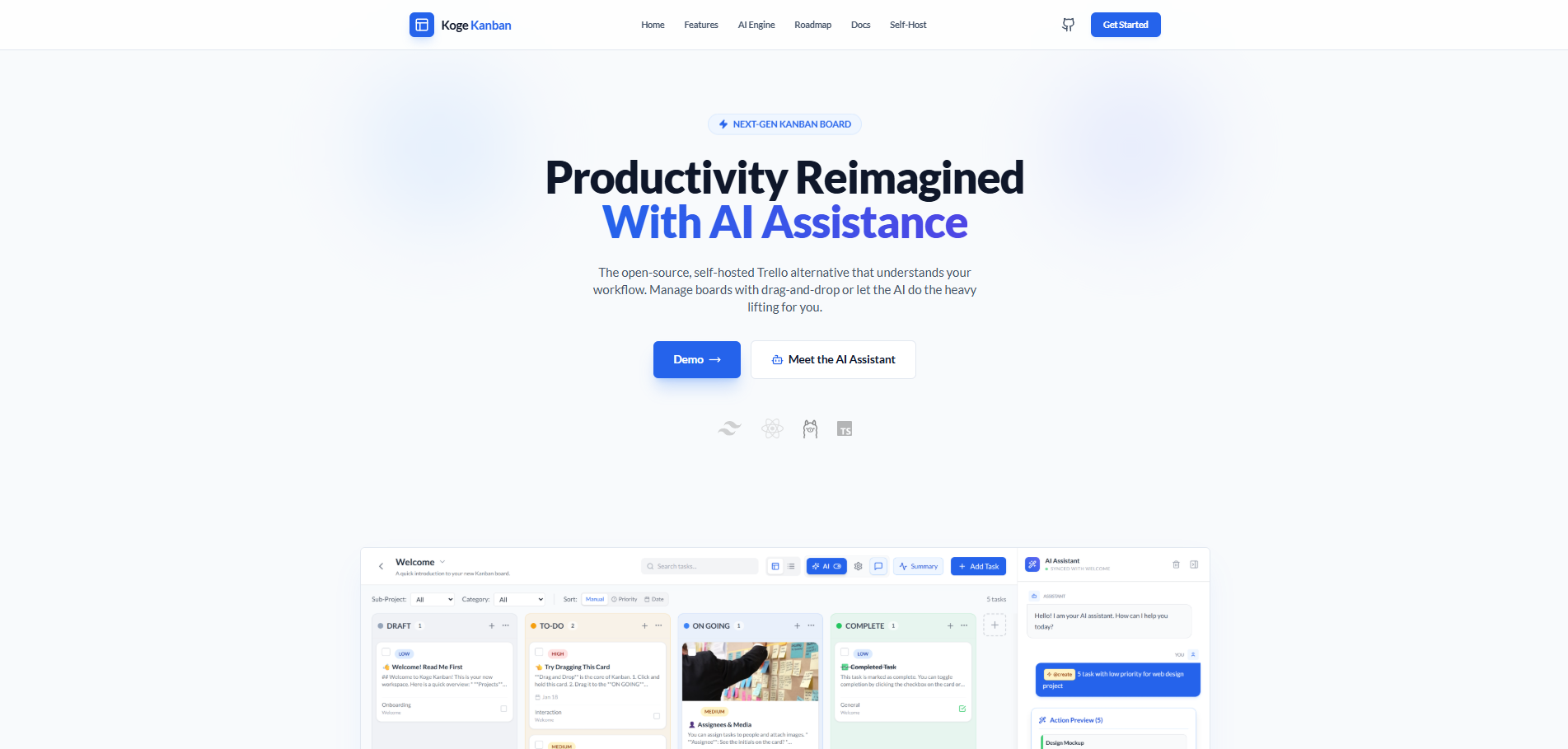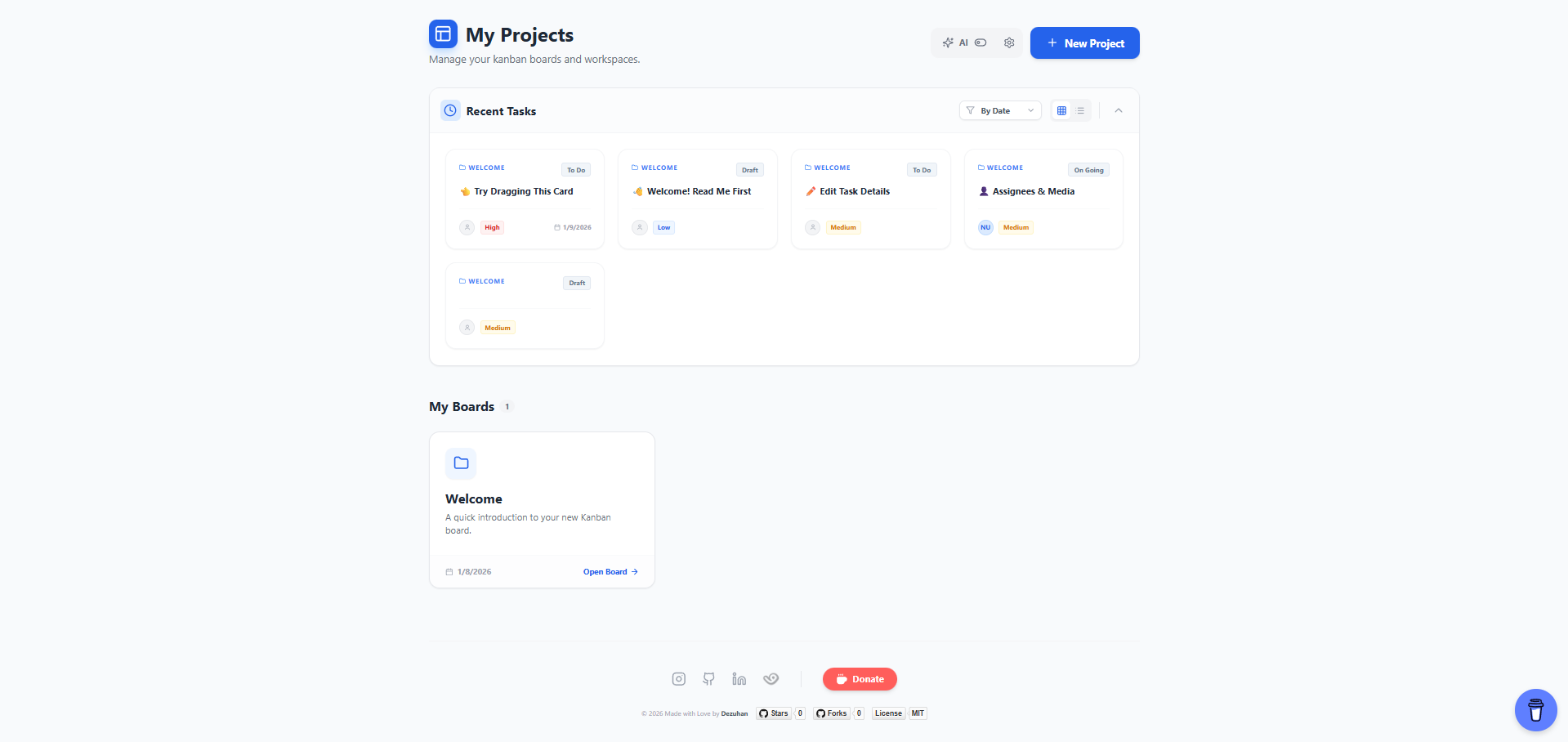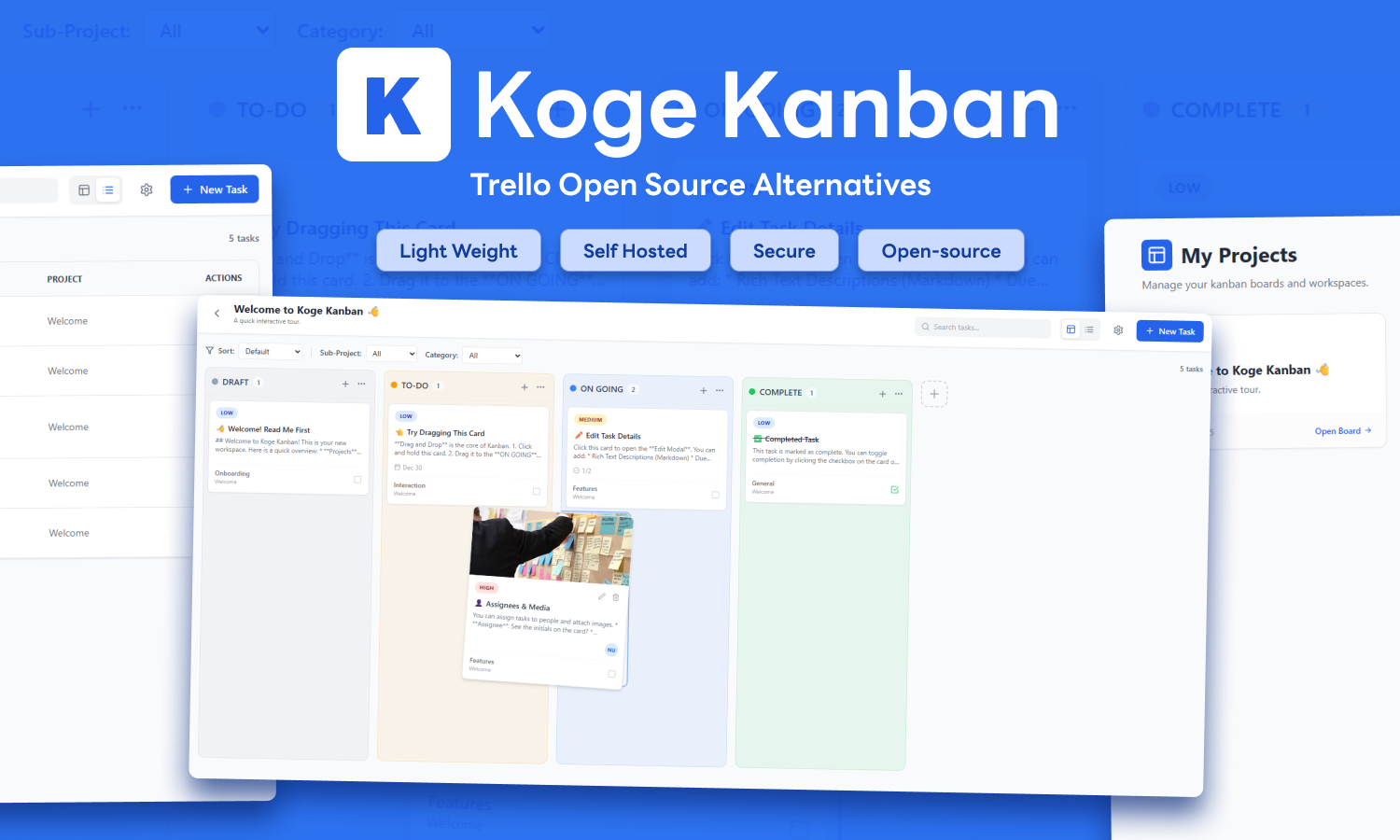
Koge Kanban
A streamlined Kanban board featuring drag-and-drop management, table views, and project organization. This application requires a local MariaDB server for data persistence.
Features
- Project Management: Create multiple projects/workspaces.
- Kanban Board: Drag-and-drop tasks between custom columns.
- Table View: A structured list view of all tasks.
- Media Support: Attach image links or upload images (saved to DB).
- Customization: Customize column colors and priority settings.
- Database Driven: Data is stored in a MariaDB database.
Prerequisites
- Node.js: Version 18.0.0 or higher.
- NPM: Included with Node.js.
- MariaDB: Required for data storage.
Local Installation & Setup
Follow these steps to run the application on your local machine.
1. Clone the Repository
git clone https://github.com/dezuhan/koge-kanban.git
cd koge-kanban
2. Install Dependencies
npm install3. Setup Database (MariaDB)
- Ensure MariaDB is installed and running on your machine.
- Update the database credentials in
server.jsif they differ from the defaults (user: root, no password). - Start the backend server:
// Database Configuration
const dbConfig = {
  host: process.env.DB_HOST || 'localhost',
  user: process.env.DB_USER || 'root',
  password: process.env.DB_PASSWORD || '', //insert your password mariaDB into ''
  connectionLimit: 5
};node server.jsThe server will automatically create the koge_kanban database and necessary tables if they don't exist.
4. Run the Application
In a new terminal window:
npm run devThis will start the development server (usually at http://localhost:5173). Open this URL in your browser.
Note: You must have node server.js running for the application to work.
5. Building for Production
To build the frontend for production:
npm run buildYou can serve the dist folder using a static file server, but you must still keep the Node.js backend running for the API.
Project Structure
Koge-kanban/
├── components/       # React UI Components
├── services/         # Database logic (API adapter)
├── index.html        # Entry point
├── index.tsx         # React root
├── App.tsx           # Main application logic
├── types.ts          # TypeScript interfaces
├── vite.config.js    # Vite configuration
└── package.json      # Dependencies and scripts
Local Data Gateway without Download Entire Code
This repository contains the lightweight backend server required to run Koge Kanban in Private Hybrid Mode.
This setup allows you to use the modern Koge Kanban web interface (hosted on Vercel) while keeping 100% of your data stored locally on your machine via MariaDB. No data is ever sent to our cloud servers.
Architecture
- Frontend: Hosted securely on Vercel koge-kanban.vercel.app.
- Backend: Runs locally on your machine (
localhost:3000). - Database: Local MariaDB/MySQL instance.
- Connection: The browser bridges the secure frontend to your local backend using Private Network Access.
Installation & Setup
You do not need to clone the entire repository. You only need to set up the local server gateway.
1. Initialize the Project
Open your terminal, create a new directory, and initialize the environment:
mkdir koge-local-server
cd koge-local-server
npm init -y
npm pkg set type="module"
npm install express mariadb cors
2. Create the Server File
Create a file named server.js in the directory and paste the following code.
Note: Update the dbConfig object if your database uses a password or a different user than root.
Copy code from server.js in this repo
Usage Guide
1. Run the server
Run the following command in your terminal:
node server.jsKeep this terminal window open.
2. Connect via Browser
Open your preferred browser (Chrome, Edge, or Brave).
Navigate to the official frontend: koge-kanban.vercel.app.
Important: The browser will verify that a public website is trying to access your local network. You will see a prompt:
"Allow site to access your local network?"
Click Allow.
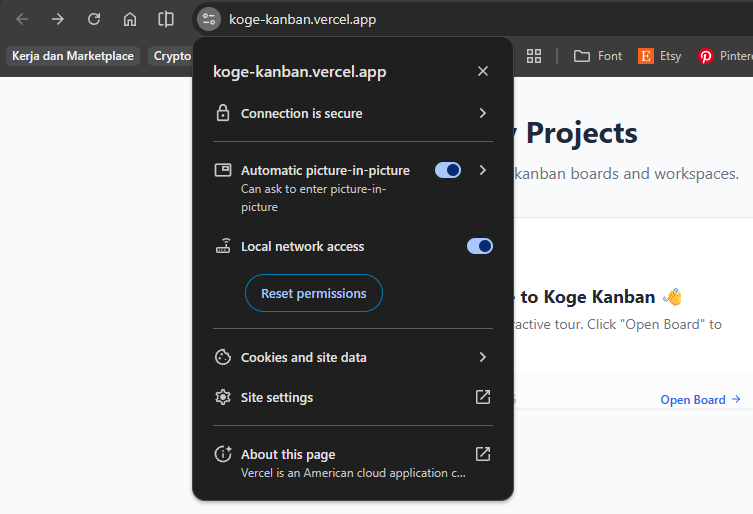
Click Allow
Refresh the page
3. Verification
Create a new project or move a card. Refresh the page. If your changes persist, the connection is successful!